The Google Play Store has picked up several small but practical changes that directly affect how apps install, update, and surface information. None of these features alter what the Play Store is at its core, but together they reduce friction during routine app management and give users more granular control.
These changes are easy to miss because they do not announce themselves during onboarding or updates. They surface only when installing apps, reviewing updates, or browsing the management screens. Once enabled or discovered, they tend to stick because they solve common annoyances that long-time Android users have learned to work around. The following four features stand out because they remove long-standing limitations without adding new complexity.
Per-app auto-update control
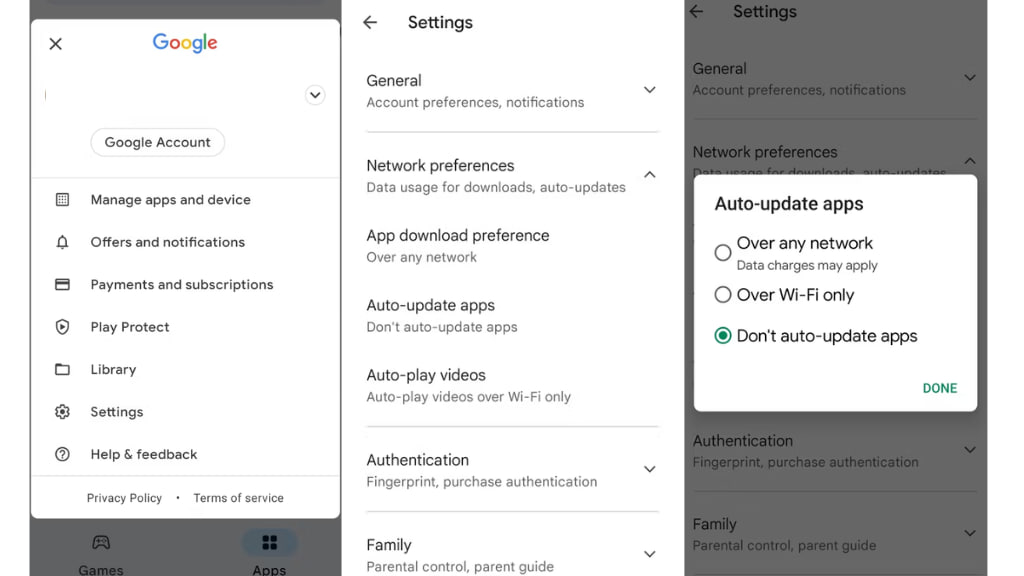
Global auto-update settings have always forced an all-or-nothing decision. Either every app updates automatically, or none do. For users who rely on specific apps for work or daily tasks, this creates a risk: a single bad update can break a workflow.
The Play Store now allows auto-updates to be enabled or disabled on a per-app basis. This setting works as an exception layer on top of the existing network and update preferences. To enable or disable auto-updates for a specific app:
- Open the app's page in the Play Store.
- Tap Install or Update.
- Tap the three-dot menu in the top-right corner.
- Toggle Enable auto-update.
This setting persists until changed manually. Uninstalling and reinstalling the app resets it to the default behavior, which follows the global update rule. Network preferences remain untouched, meaning Wi-Fi-only restrictions still apply. This change allows critical apps to stay pinned to known-good versions while less important apps continue updating automatically.
Built-in download manager shortcut
The Play Store now exposes a lightweight download manager directly in its interface. The shortcut appears as a circular icon near the top of the Apps and Games pages and changes state when a download is active. Tapping the icon opens a list of recently installed or updated apps, along with timestamps indicating how recent each install was.
Apps can also be launched directly from this list without navigating back to their store pages. When a download is in progress, the icon switches to a progress indicator. Selecting it shows the active download alongside recent installs. The shortcut only appears on the Apps and Games tabs and does not show up in Books or general search views. This feature removes the need to dig through notifications or the system app drawer to confirm what was just installed, especially when multiple apps are updated in a short session.
Auto-open when ready
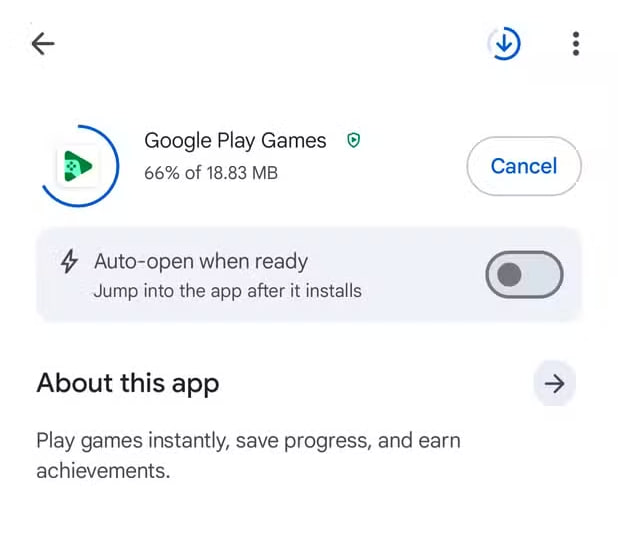
A new toggle labeled Auto-open when ready appears immediately after tapping the Install button on supported app pages. When enabled, the app launches automatically once installation finishes. The behavior is intentionally cautious. Instead of opening the app instantly, the Play Store displays a notification with a visible countdown timer.
The notification includes options to cancel or open immediately, giving users time to intervene if they are in the middle of another task. The notification appears even if the device is idle, ensuring the launch is predictable rather than sudden. The toggle must be enabled per app and does not grant blanket permission for all installations. This approach removes the need to wait on the download screen while still avoiding disruptive app launches.
Viewing changelogs without opening app pages
Checking what changed in an update previously required opening each app's store listing individually. The Play Store now surfaces changelogs directly from the app management screen. To access update notes:
- Tap the profile icon in the Play Store.
- Select Manage apps and device.
- Open the Manage tab.
- Use the filter to show Recently updated apps.
- Tap the down arrow next to any app to expand its changelog.
The displayed notes correspond to the version currently installed on the device. Apps can also be selected from this screen and uninstalled in bulk using the checkbox and delete icon. This makes it easier to review updates at scale, especially after automatic update runs.
Why these changes matter
Individually, each feature addresses a narrow problem. Together, they shift the Play Store toward a more controlled and transparent experience. App updates no longer require blind trust, installs no longer demand attention, and change information is no longer buried. These additions also reduce reliance on third-party app managers or manual tracking habits that experienced users often develop over time.
The Play Store still enforces its existing security and policy layers, including app scanning and network restrictions. These features operate within those boundaries rather than replacing them. Users who prefer to keep app management centralized will find fewer reasons to step outside the default store, especially on primary devices where stability matters.
The new controls do not appear everywhere and may not surface on older app versions or devices immediately, but when present, they function without additional configuration.
Thank you for being a Ghacks reader. The post Four Google Play Store Features That Change How App Installs and Updates Work appeared first on gHacks Technology News.






0 Commentaires