When hardware behaves oddly on a Linux system, the fastest answers are often already available from the terminal. One of the most useful tools for this is lspci, a small command that reports what devices are connected to the PCI bus and how the kernel sees them.
lspci is not flashy, but it is reliable. It works on servers, laptops, desktops, and recovery environments, and it does not depend on a desktop session being available. These are the ways it is most useful in day-to-day troubleshooting.
1. Get a quick inventory of internal hardware
Running lspci without any flags gives a concise list of PCI devices detected by the system:
lspci
This shows graphics adapters, network controllers, storage controllers, and chipset components. Each entry includes a slot address, vendor name, and device description. If a GPU, network card, or controller does not appear here, Linux is not seeing it at all.
This step is often enough to confirm whether a hardware issue is physical or software-related.
2. Narrow the output to a specific device
On systems with lots of devices, the output can be overwhelming. Piping the results into grep makes it easier to focus on one component:
lspci | grep USB
This works well for USB controllers, graphics devices, or network hardware. Searching by vendor name is often more reliable than generic terms like "GPU" or "graphics," which may not appear in the device label.
3. View detailed information for troubleshooting
When basic output is not enough, verbose mode adds useful context:
lspci -v
This includes IRQ assignments, memory ranges, and other technical details that help diagnose driver or resource conflicts. Some fields require elevated privileges, so running it with sudo may reveal more data.
Higher verbosity levels exist, but they are usually unnecessary unless debugging kernel or driver-level issues.
4. Understand how devices are connected
The PCI tree view shows how devices relate to each other:
lspci -tv
This is especially useful on laptops and servers, where multiple devices share bridges or controllers. It can explain why disabling or removing one device affects another, and it helps when diagnosing bandwidth or bus contention problems.
5. Check which driver a device is using
Knowing whether the correct kernel driver is loaded can save time. Once you know the device's slot address, you can check its driver like this:
lspci -ks 00:02.0
This reveals the kernel module currently in use and which modules are available. For graphics cards and network adapters, this step quickly shows whether the system is using an open-source driver, a fallback module, or nothing at all.
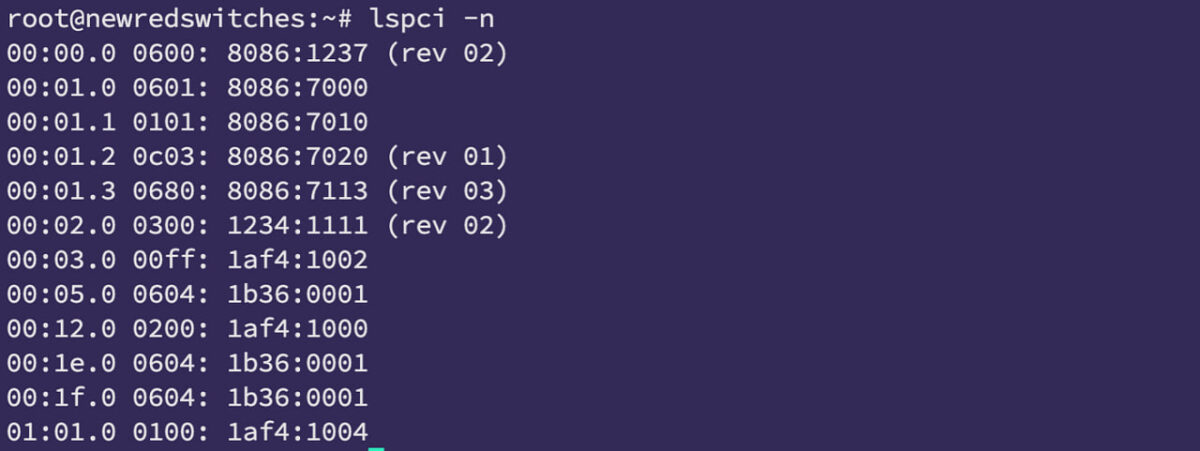
6. Get vendor and device IDs for deeper research
Sometimes device names are not enough. lspci can display numeric vendor and device IDs that uniquely identify hardware:
lspci -nn
To focus on a single device:
lspci -nns 00:02.0
These IDs are invaluable when searching documentation, reporting bugs, or checking compatibility lists. They also help confirm the exact hardware variant when multiple revisions exist.
When lspci is the right tool
lspci only shows PCI devices. It does not list USB peripherals, storage partitions, or removable drives. For those, tools like lsusb and lsblk are more appropriate.
Still, for diagnosing GPUs, Wi-Fi cards, Ethernet controllers, NVMe interfaces, and chipset components, lspci is one of the fastest ways to see what Linux actually recognizes.
Keeping it in your troubleshooting toolkit makes hardware issues easier to identify before they turn into guesswork.
Resources:
https://ift.tt/uMUBiS4
Thank you for being a Ghacks reader. The post Six Practical Ways to Use lspci When Troubleshooting Linux Hardware appeared first on gHacks Technology News.






0 Commentaires