Apple’s latest software update, iOS 26, introduces a new shortcut that makes adding events to Apple Calendar much easier. Users can now create calendar entries directly from screenshots using Apple Intelligence.
In iOS 26, Screenshots Open in a Full-Screen By Default
One of the key changes in iOS 26 is how screenshots behave.
Instead of appearing as a small floating thumbnail in the corner of the screen, screenshots now open in a full-screen interface by default. This change enables several new AI-powered tools to analyze what appears in the screenshot.
Users who prefer the previous thumbnail behavior can still switch back to it in Settings.
"Add to Calendar" From a Screenshot
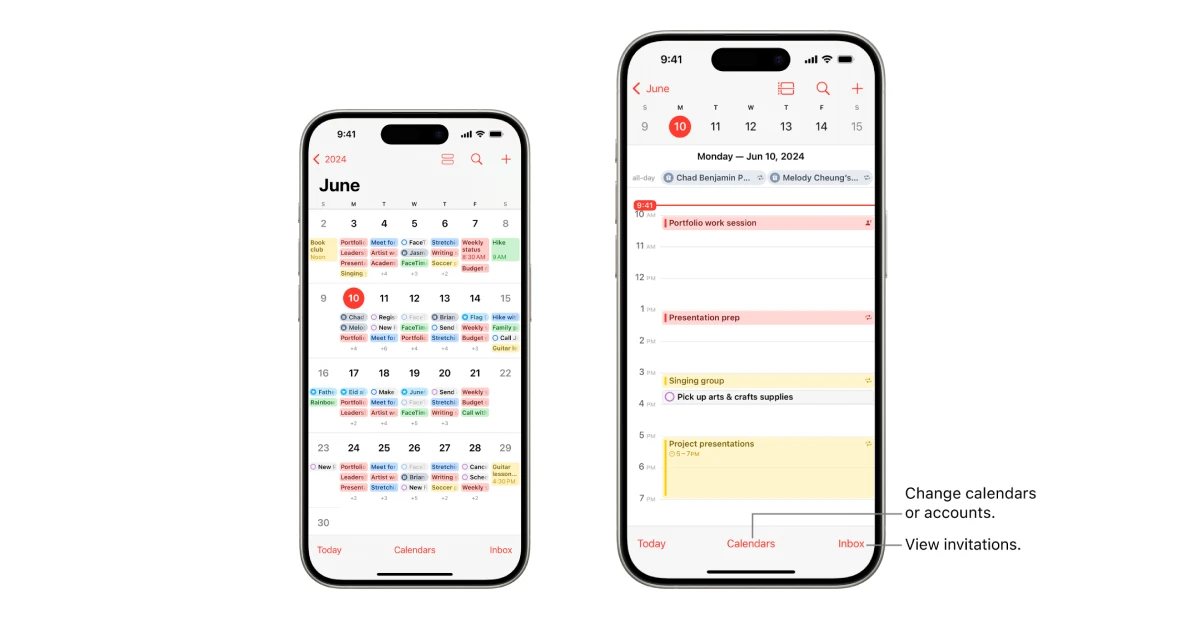
When a screenshot contains details about an event (such as a date, time, or meeting information), iOS 26 can detect it automatically.
A new “Add to Calendar” button appears at the bottom of the screenshot interface. Tapping it converts the detected information into a calendar event.
The feature works by analyzing the screenshot with Apple Intelligence to extract key event details.
Users Can Review the Event Before Creating in the Calendar
After tapping the button, users see a preview of the event before saving it.
From there, they can:
- Confirm the event and tap Create Event
- Edit details like the title, time, or calendar
- Choose which calendar account to save the event to
If changes are needed, the Edit option opens the standard event creation screen inside the Calendar app.
Events From Screenshots Is a Small but Useful Productivity Feature
While Apple Calendar did not receive major redesign changes in iOS 26, this new screenshot-based workflow gives it a practical advantage.
For many users, adding events from screenshots (such as invitations, social media posts, or event listings) could become one of the fastest ways to populate a calendar.
Even people who primarily use third-party calendar apps may still benefit from the feature by syncing their calendar accounts through iOS settings.
Thank you for being a Ghacks reader. The post iOS 26 Lets You Instantly Add Calendar Events from Screenshots appeared first on gHacks.





0 Commentaires